In this series we are going to discuss the moving average costing method, by covering the following topics:
Part 1: Handling of price differences between a product receipt and the invoice.
Part 2: Revaluation for moving average.
Part 3: Backdating and moving average.
part 4: Production costing and moving average.
part 5: View how moving average was calculated.
first let's introduce the moving average costing method. Moving average is an inventory evaluation method that reevaluates inventory value in the chronological order of posting transactions, and it can be used to compute the average cost of the current ending inventory.
When a receipt transactions are included chronologically in the moving average calculation, according to the order in which the transactions are recorded in the system.
When Issue transactions are assigned the current active moving average cost at the time of recording, and the costs on inventory issues do not change even if the purchase costs (price in vendor Invoice ) change.
In the following example we are going to illustrate how we can setup the moving average prerequisites and then how we can Handling of price differences between a product receipt and the Vendor invoice.
Set up prerequisites for moving average as follow:
1- Set up an item model group
1.1- Go to Inventory and warehouse management > Setup > Inventory > Item model groups.
1.2- Click New to create a new item model group for moving average.
1.3- On the Setup FastTab, these check boxes are selected by default:
- Stocked product
- Post physical inventory
- Post financial inventory
1.4- On the Inventory model FastTab, in the Inventory model field, selectMoving average. The Include physical value check box is not available. However, when you apply moving average, physical transactions are always included in a cost calculation.
2- Posting types
Proportionally expensed amounts and adjustments must be posted to General ledger. To distinguish the proportionally expensed amounts from other transactions in General ledger, two unique posting types have been introduced:
- Price difference for moving average
- Cost revaluation for moving average
2.1- Go to Inventory and warehouse management > Setup > Posting > Posting.
2.2- On the Inventory tab, click Price difference for moving average, and then click Add. In the Main account field, select the main account to use.
2.3- Click Cost revaluation for moving average, and then repeat step 2.2 for this account type.
3- Set up Production control parameters
3.1 Go to Production control > Setup > Production control parameters.
3.2 On the General tab, under Report as finished, select the Use estimated cost price check box. When this check box is selected, the estimated cost price is used rather than the cost that is registered on the product master.
3.3 Under Posting, select Post picking list in ledger and Post report as finished in ledger.
3.4. Under Estimation, select Price calculation.
4- Set up Product item model group
Since I am using AX 2012 R3 Demo data, USMF legal entity and item No. D0007 i need to do the following:
4.1- Product information management > Common > Released products > edit item D0007 and make sure to assign the moving average item model group to the item.
Scenario : Handling of price differences between a product receipt and the invoice
If some of the items on a purchase order have been received then sold, and there is a difference between the estimated cost of the purchase (Cost when the product receipt was posted) and the vendor invoice, the full difference between the invoiced amount and the receipt cannot be recognized as inventory cost. In this case, you need to expense the difference proportionally.
Example: Proportionally expense a difference in price
In this example, you post an invoice to a receipt, and there is a difference in price between the estimated price and the price that is actually charged for the product.
After some of the units of the purchase are sold and thus taken out of inventory again, the value of the inventory cannot be based on the full quantity of the purchase.
In this case, the difference between the estimated price and the actual price of the items that were taken out of inventory must be expended.
To perform the example follow the steps:
1- Go to Account payables > Common > Purchase orders > all purchase orders. then create new order to purchase five pieces of an item No D0007and enter an estimated price of 10.00 per unit. then confirm the Purchase order.
2. To receive the items go to receive tab then process the product receipt
3 to sell two of the item Go to Account receivables > Common > sales order > all sales order Now create a sales order for two of the item D0007. So two items are taken out of inventory again at the cost of 10.00 each. confirm the sales order then process the packing slip then post the invoice.
4. when you receive the invoice for the purchase order and discover that you are actually charged 12.00 per unit for the item D0007 , not 10.00 as was originally estimated.
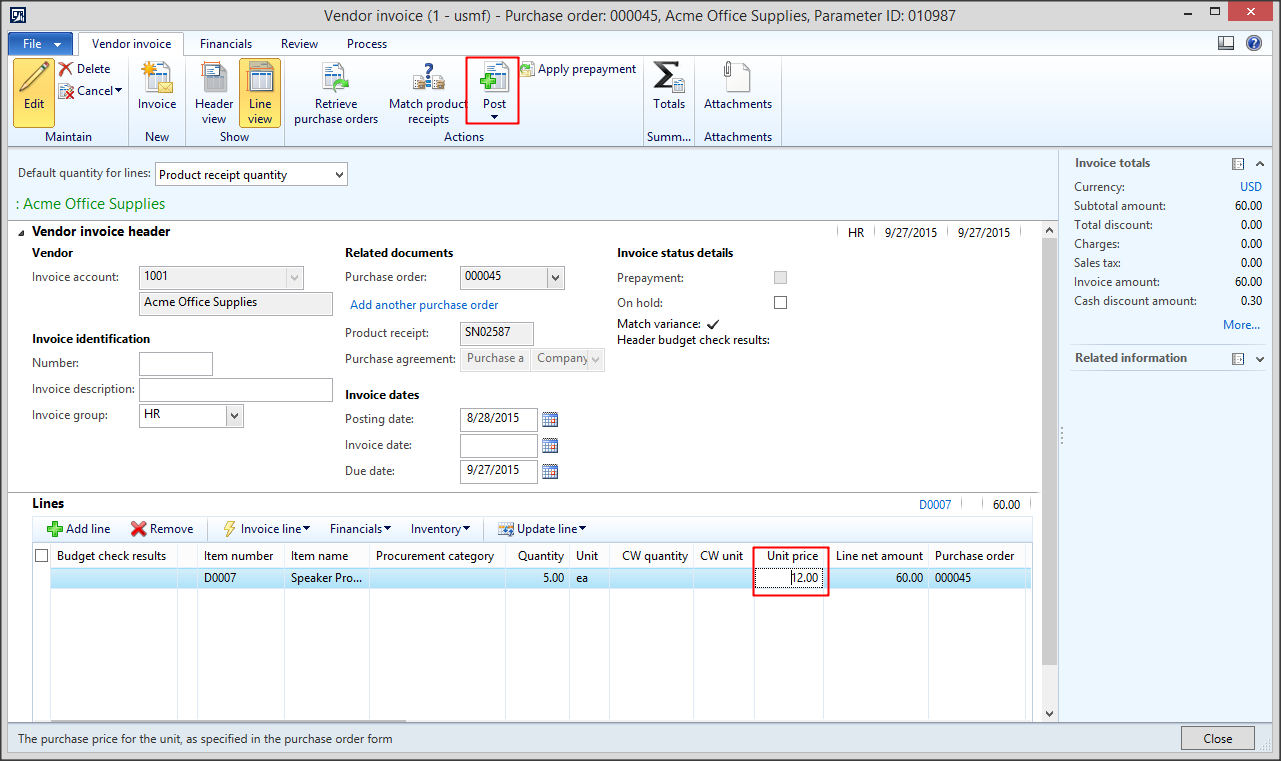
5. to create the invoice go back to the purchase order> invoice tab > invoice, change the cost per unit from 10.00 to 12.00, and then post the invoice.
6. The additional cost of 2.00 per unit cannot be related to the sales order, because the sales order is already costed when you receive the invoice for the purchased items. Therefore, the system performs a proportional calculation, and the expense of 4.00 ([12.00 – 10.00] × 2 units) is expensed on the Price difference for moving average account.
7- To view amounts that are posted on the Price difference for moving average account based on a proportional calculation go to the Invoice tab in the purchase order, click Invoice
8- In the Invoice journal form, click Voucher.
9. In the Voucher transactions form, in the Amount field, view the amount that is posted to the Price difference for moving average account.
10- please note the following:
- The remaining stock quantity ( 3 pcs ) cost will be updated to 12 when the product receipt voucher reversed and the vendor balance voucher registered.
- The Price difference for moving average account could be debited or credited depending on the difference between the receipt cost and the invoice cost.