Today we are going to talk about prepayments in AX 2012.Prepayment function is used to record a receipt from a client into A/R that doesn't have an invoice yet. This prepayment function is used to offset the cash on a prepaid A/R account instead of the regular Accounts Receivable account.Once the invoice is created and settled against the prepayment, the system will automatically post a customer settlement transaction to offset the A/R prepaid account with regular A/R and ensure the balances are closed. Below are the steps and the result of this process:Before creating your payment journal, you need to define a new posting profile for prepayment. This will ensure the payment is recorded in prepaid A/R instead of regular A/R. The new posting profile is then selected in AR > Setup > Parameters > Ledger and sales tax > Prepayment journal voucher fields group.Select the new posting profile in the "Posting profile with prepayment journal voucher" field. Also, check the "Sales tax on prepayment journal voucher" if you want sales tax to be deducted from the payment received. Sales tax will be adjusted when the invoice is created and settled against the prepayment only if the amount o the invoice is more than the prepayment itself.
Go to Accounts Receivable > Journals > Payments > Payment journal. Create a new payment journal like you would usually do when receiving a receipt however since you don't have an invoice yet, do not select the invoice, the invoice field will remain blank.
Before posting the journal make sure to flag the payment as prepayment. For that, on the journal go to the "Payment" tab and mark the check box "Prepayment journal voucher". By marking this check box, the posting profile will automatically be changed to the prepayment posting profile previously selected in the parameters.
Once all the information related to the receipt (amount, receipt number, date...) are entered, post the journal and verify the voucher. The result should be DB to cash and CR to A/R prepayment account selected on the new posting profile.
Once you are ready to invoice the customer, create a new invoice as a free text or sales order invoice and post. Validate that the voucher is DB A/R and CR revenue.
At that point A/R and A/R prepayment do have open balances and the invoice and the payment transactions are open.
To close both transactions and zero out A/R and A/R prepayment, go to AR > All customers > search for your customer and click on Collect > Settled open transactions
You will see the invoice and the prepayment transactions, mark them both and click on Update button.
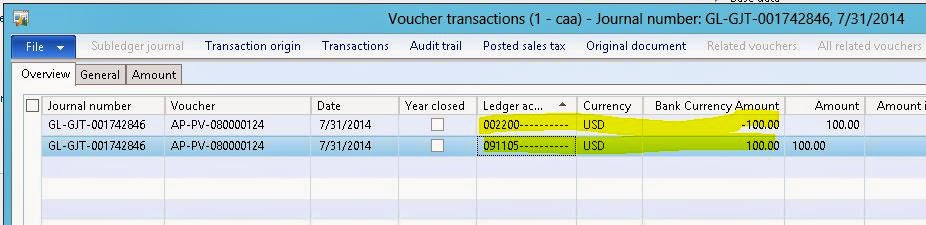
The result of the settlement is a new posted voucher with DB A/R prepayment and CR A/R. Both A/R are zeroed out and invoice and payment transactions are settled and closed.